
Before following the below steps, you'll want to be sure four key tasks have already been completed.
1. Create the Client. See this article for more information
2. Upload and map your payroll data. See this article for more information
3. Upload your recordkeeper data (if applicable). See this article for more information
4. Process your engagement.
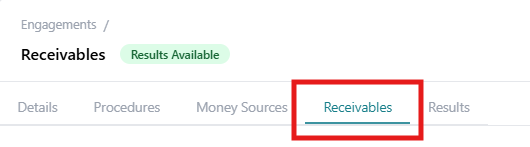
1. Select the Receivables Tab
Following the successful processing of your engagement, the receivables tab will become visible and accessible.
Step 1a: Select the receivables tab
2. View Deposits by Money Source
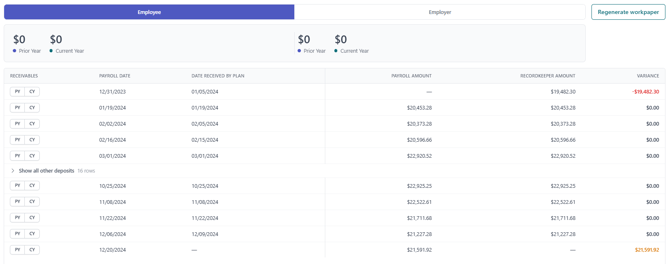
The receivables tab will display the same data available in the Contribution Timeliness Reconciliation tab within the Plan and Participant Reconciliation workbook for your engagement.
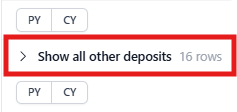
Step 2a: Show all other deposits
The deposits are initially filtered to display the first five deposits, and the last five deposits. Select "Show all other deposits" to view all reported deposits for that money source.
Step 2b: View deposits by money source
Deposit information is shown by money source. Deposit dates will by displayed if there was contribution activity reported by either the payroll provider or recordkeeper for that money source. Select "Employee" or "Employer" to view deposit information by money source.
3. Select CY & PY Receivables Dates by Money Source
Step 3a: Select receivables for each money source type
Select "PY" for prior year receivable amounts, and "CY" for current year receivable amounts for each money source, if applicable.
The sum of all the PY & CY selections will appear below each money source type.
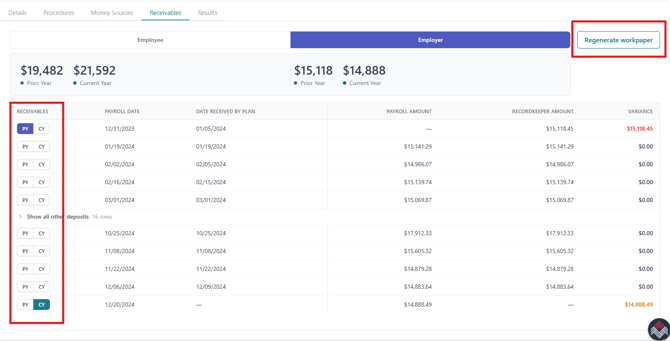
Step 3b: Regenerate the Plan and Participant Reconciliation workbook
Once all receivable selections have been made, select "Regenerate workpaper." Once the Plan and Participant Reconciliation workbook has been regenerated, the Results tab will become accessible and the workbook available for download.