Before following the below steps, you'll want to be sure two key tasks have already been completed.
1. Create the Client. See this article for more information
2. Request and receive the Payroll Input Data from your client in the proper format. See this article for more information.
0. Create the Engagement
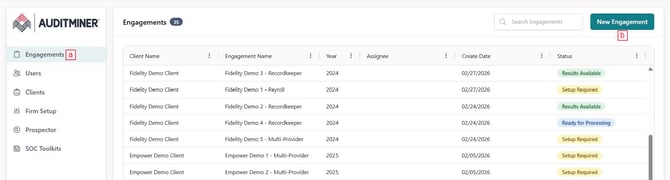
Step 0a: Select Engagements from the left navigation pane
Step 0b: Select the New Engagement button
1. Add Engagement Details
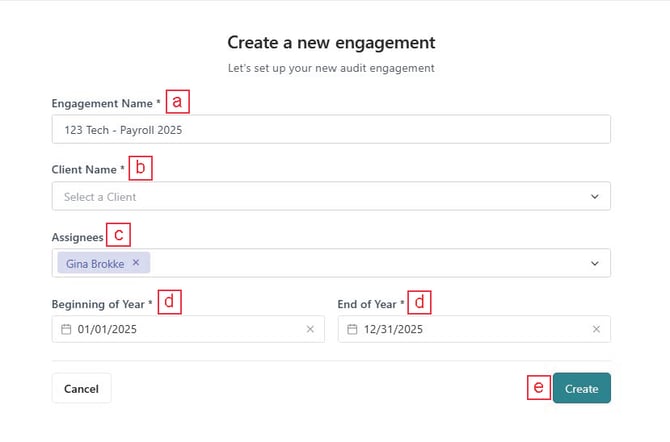
Step 1a: Enter the Engagement Name.
We recommend having a firm standard Engagement Name that includes the year and client name, as the Engagement Name will be incorporated into the header of your Payroll Reports.
Step 1b: Select the Client Name.
If a client does not appear in the drop down list, you may add a new client directly from the 'Create a new engagement' page by selecting "Add as a new client". Alternatively, you may add the client to the 'Clients' screen prior to creating a new engagement. See this article for how to create a client.
Step 1c: Select AuditMiner users who should be able to access this Engagement in the Assignees field.
Step 1d: Enter the Beginning of Year and End of Year for the plan year.
Step 1e: Select "Create."

2. Add a Payroll Provider
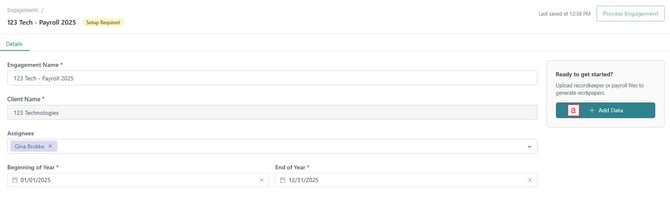
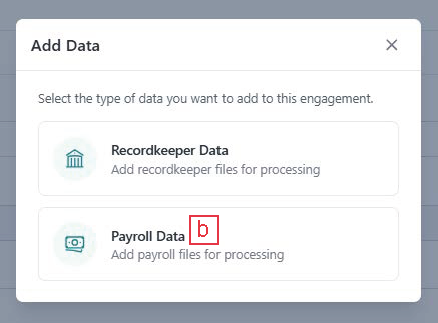
Step 2a: Select "Add Data."
Step 2b: Select "Payroll Data."
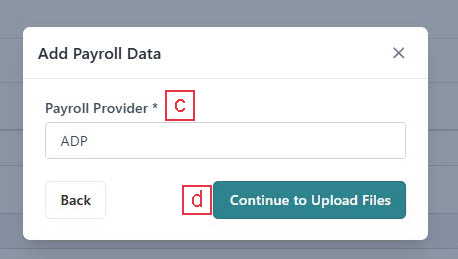
Step 2c: Enter the payroll provider name
Step 2d: Select "Continue to Upload Files".
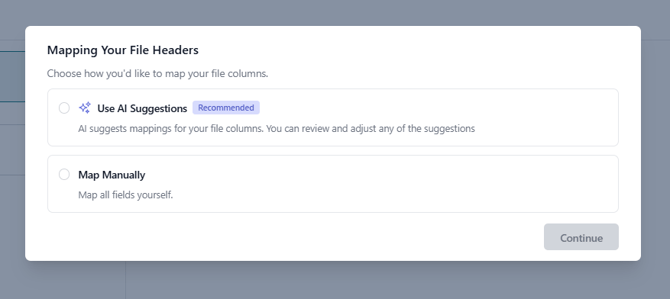
3: Choose Mapping Approach
Use AI Suggestions
Mappings will be automatically populated upon file upload for review, as well as suggest pay codes that appear to be compensation related.
Map Manually
All mappings will be mapped manually by the user.
4: Upload File(s)
Step 4a: Navigate to the upload screen
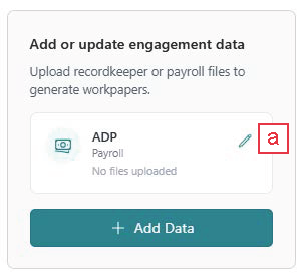
You will automatically be redirected to the upload screen following the selection of "Continue to Upload Files" in step 2d. You may also access the upload screen by selecting the edit icon next to the related payroll provider from the engagement details tab.
Payroll Input File
Step 4b: Access the instructions for the payroll input file by selecting the Payroll Detail card and the "View Download Instructions" button.
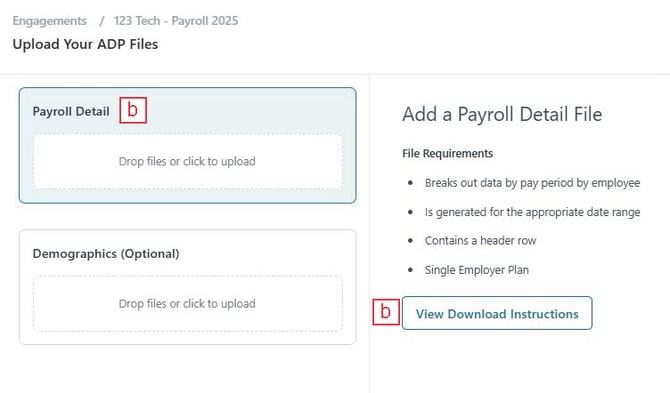
Step 4c: Add the payroll detail file received from your client by either dragging and dropping it into the designated uploader or selecting the 'Drop files or click here to upload' button to select and upload your file.
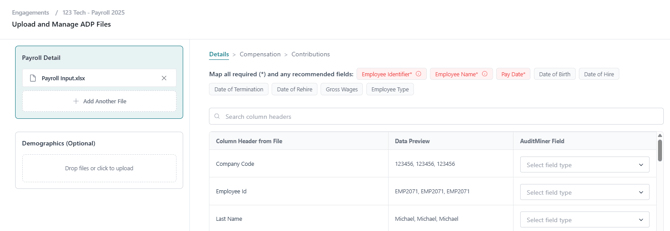
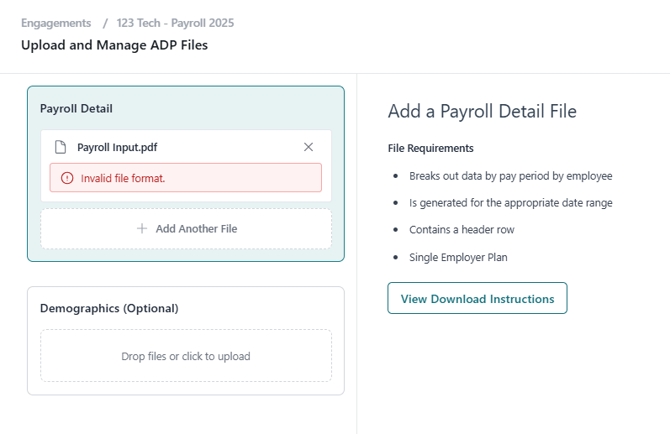
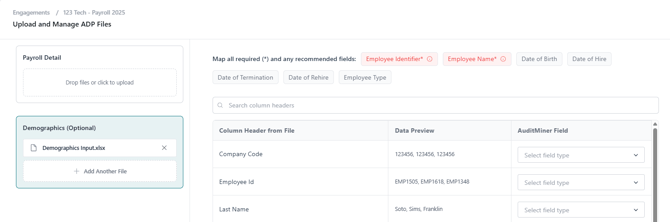
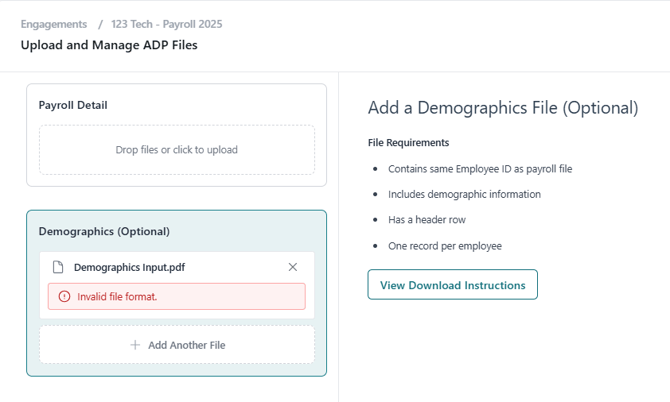
Step 4d: Once you upload a file, a successfully validated file will transition to the mapping screen. If validation failed, error messaging will appear.
- Validated: The file was successfully uploaded and validated by the system. All files need to be validated to proceed with engagement processing.
- Validation Error: The file was not successfully uploaded and validated by the system. The file(s) must validated in order to proceed with engagement processing.
Please refer to this article for common issues with file validation errors.
More than one payroll input file may be uploaded. See this article for more details on Engagements with multiple payroll files.
Validated File
Invalid File
Demographics Input File (Optional)
Step 4e (optional): Access the instructions for the demographics file by selecting the Demographics card and the "View Download Instructions" button or see this detailed article.
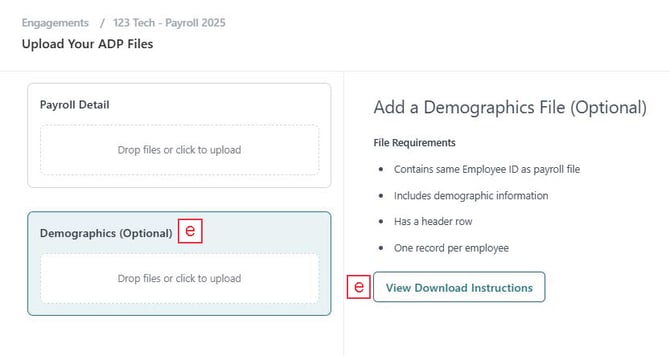
Step 4f (optional): Add the demographics file from your client by either dragging and dropping it into the designated uploader or selecting the 'Drop files or click here to upload' button to select and upload your file.
Step 4g: Once you upload a file, a successfully validated file will transition to the mapping screen. If validation failed, error messaging will appear.
- Validated: The file was successfully uploaded and validated by the system. All files need to be validated to proceed with engagement processing.
- Validation Error: The file was not successfully uploaded and validated by the system. The file(s) must validated in order to proceed with engagement processing.
Please refer to this article for common issues with file validation errors.
Validated File
Invalid File
5. Map Payroll Fields
Payroll Input File Only
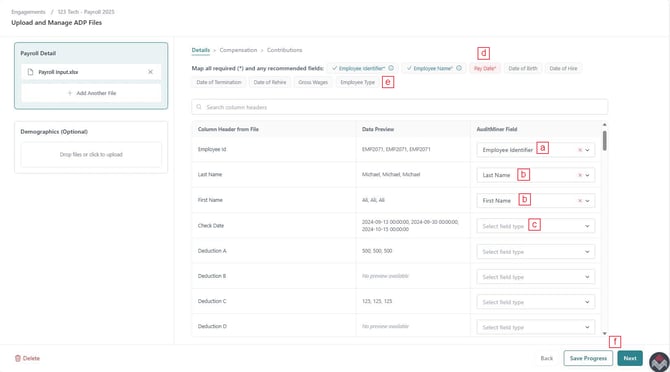
There are 3 required data fields that need to be present in your Payroll Input File. This mapping screen allows you to tell AuditMiner which columns in the Input File contain the required data.
Step 5a: For the Column Header from File that contains the Employee Identifier, select Employee Identifier in the AuditMiner field.
Step 5b: If the input file contains one column with the full employee name, select Full Name in the AuditMiner field next to that Column Header from File.
If the input file contains separate columns for First Name and Last Name, map each Column Header from file to the First Name and Last Name AuditMiner fields as appropriate.
Step 5c: For the Column Header from File that contains the Pay Date, select Pay Date in the AuditMiner field.
Step 5d: You'll notice the Required data fields at the top change from red to teal when the mapping is correctly done. If you have any red fields, you must correct the mapping before proceeding.
Step 5e (optional): There are six recommended fields available for mapping. These fields appear in gray, and are not required to proceed with processing your engagement. See this detailed article for frequently asked questions regarding recommended fields.
Step 5f: Select "Next" to continue to the compensation mapping screen, or "Save Progress" to save and exit the mapping screen.
Payroll and Demographics Input Files
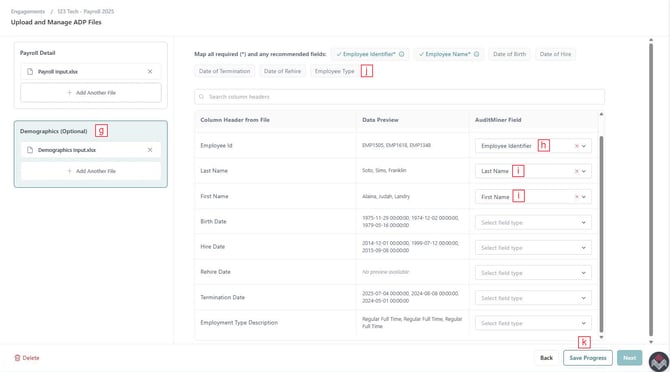
In addition to the above required fields for the payroll input file, if you upload a demographics input file, you must fulfill the below requirements.
Step 5g: Select the Demographics card to map fields from the demographic file.
Step 5h: For the Column Header from File that contains the Employee Identifier, select Employee Identifier in the AuditMiner field.
Ensure that the Employee Identifier mapped for the payroll input file is the same identifier mapped in the demographics input file.
Step 5i: If the input file contains one column with the full employee name, select Full Name in the AuditMiner field next to that Column Header from File.
If the input file contains separate columns for First Name and Last Name, map each Column Header from file to the First Name and Last Name AuditMiner fields as appropriate.
Step 5j (optional): There are five recommended fields available for mapping. These fields appear in gray, and are not required to proceed with processing your engagement. See this detailed article for frequently asked questions regarding recommended fields.
Step 5k: Select "Save Progress" to save and exit the mapping screen.
6. Compensation Mapping
Gross Wages Not Mapped as a Recommended Field
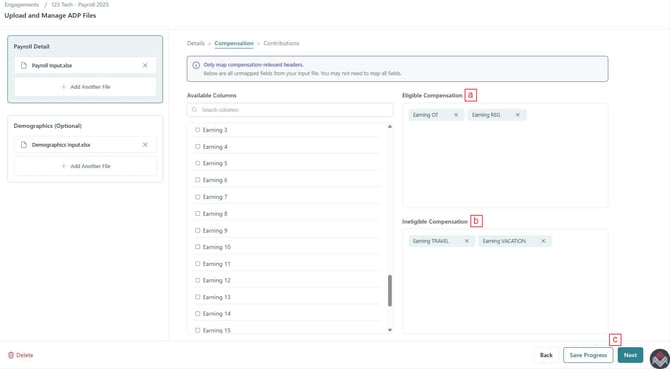
This screen allows you to map which columns in the input file represent eligible and ineligible compensation based on the plan document.
Only map the available columns that represent compensation codes.
Step 6a: Select all eligible compensation codes using the check boxes next to the columns. Once the codes are selected, you can click the codes and drag them into the eligible box.
Repeat until all eligible compensation codes have been mapped. You can use the search columns box to more easily find the eligible columns.
Step 6b: Repeat step 6a for ineligible compensation.
Step 6c: Select "Next" to continue to the contribution mapping screen, or "Save Progress" to save and exit the mapping screen.
Gross Wages Mapped as a Recommended Field
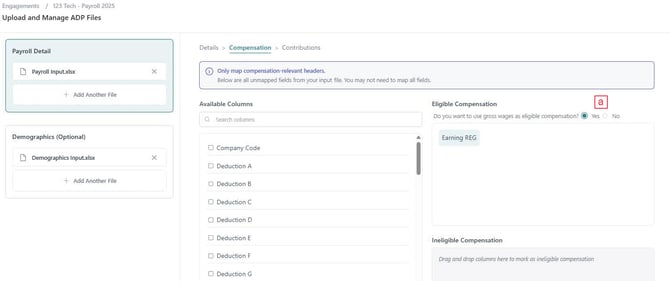
If Gross Wages is mapped as a recommended field from your payroll input file in step 5e, you may select Gross Wages to account for total eligible compensation.
Step 6a: Select "Yes" to use Gross Wages as your total eligible compensation.
Please note: If Gross Wages is used for total eligible compensation, no codes may be mapped as ineligible.
7. Contribution Mapping
This screen allows you to map columns in the input file that represent contribution codes to the relevant money source type.
Only map the available columns on the right that represent contribution codes.
Step 7a: Select all Employee Pretax codes using the check boxes next to the columns. Once the codes are selected, you can click and drag them into the Employee Pretax box.
Repeat until all Employee Pretax codes have been mapped. You can use the search columns box to more easily find the Employee Pretax columns.
Step 7b: Repeat step 7a for Employee Roth.
Step 7c: Repeat step 7a for Employer.
Step 7d: Repeat step 7a for Loan Repayment.
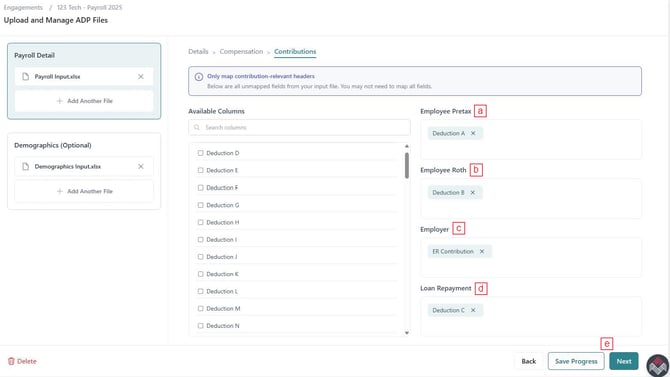
At this point, there should be no compensation or contribution columns remaining in the Available Columns list on the right.
If any contribution columns remain, finish mapping them on this screen.
If any compensation columns remain, use the Back button in the lower left to return to Step 6 and finish mapping.
Step 7e: Select "Next" to continue to the demographics file mapping (if applicable), or "Save Progress" to complete mappings and process.
8. Complete Mappings & Process
Step 8a: Once all required fields are mapped, and "Save & Exit" is selected as noted in Step 7e, select "Finish Mapping" and "Save" to complete your mappings.
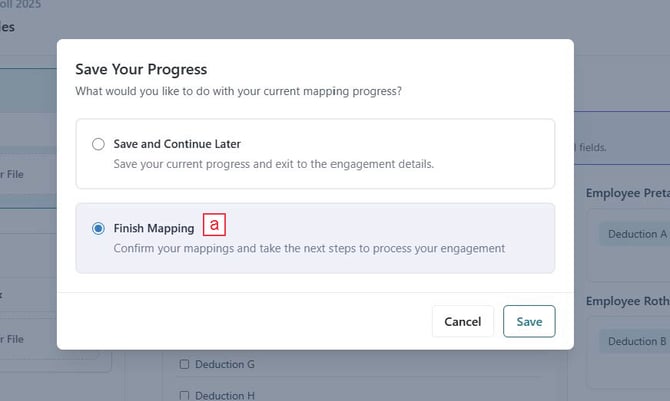
Step 8b: You will be automatically redirected to the Engagement details screen, where the Engagement Status will be Ready for Processing. Select the "Process Engagement" buttons to initiate the creation of your AuditMiner Payroll Reports.
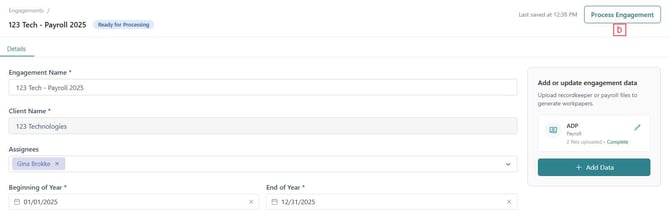
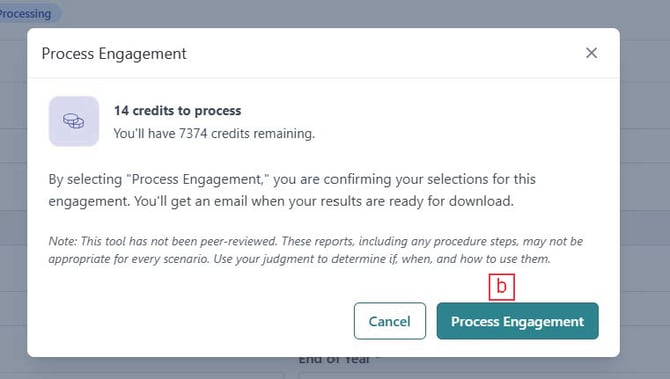
Once you process the engagement, your firm will be charged for 1 Payroll engagement.
9. Retrieving Your Payroll Reports
Step 9a: When your Payroll Reports are ready, the Status will update to Results Available and you will receive an email notification.
Step 9b: Hover over the engagement and click anywhere in the row.
.png?width=670&height=89&name=Screenshot%20(46).png)
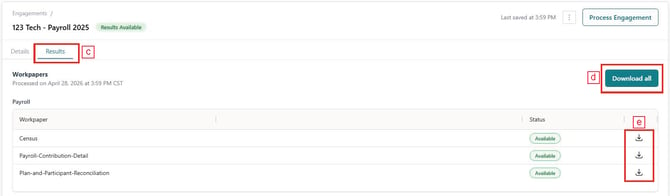
Step 9c: Select the "Results" tab.
Step 9d: The results include all payroll reports created for the engagement. Select "Download all" to generate a .zip file of all created reports.
Step 9e: To download an individual report, select the download button under actions next to the relevant report.